Usage
In order for the extension to work, you need to open at least one folder in VS Code. This is called the workspace directory in this documentation. If you are using a multi-directory workspace (by opening multiple root directories at once in VS Code), only the very first directory will be considered as the workspace directory.
The so-called output directory is a special directory inside the workspace directory.
This is where the extension will keep the files it read from TTS to work with.
The output directory is a directory called .tts inside the workspace directory.
The extension will write the script files from TTS to this directory for each object.
You can navigate this directory directly, or use the TTS Objects View in the explorer window to get a cleaner view of the objects with more functionalities.
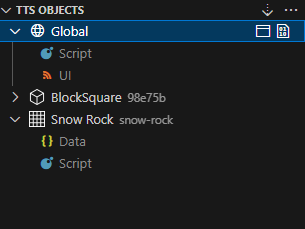
Edit the scripts for the objects you want (either by opening from the output directory or the object view) and save the files. Then execute the command "Save and Play". The default keybinding for this command is ctrl+alt+s. You can bind it to any other keys you like, through the settings in VS Code. Alternatively, there’s also a three dot menu button in the object view, where you can execute the command from.
Using "Save and Play" will send all script files that are currently in your output directory back to TTS to update them on their respective objects. When a file was deleted in the output directory, the script will be removed from the object. When a file was added (e.g. adding an XML UI file), it will also be added to the object in TTS.
After Save and Play, the extension refreshes .tts scripts/UI from the TTS reload message.
It does not wipe the output folder or re-download every object with getJSON (that used to take minutes on large saves).
Use Save and Play (Full Resync) (or enable setting ttsEditor.resyncAfterSaveAndPlay) when you need fresh object data.json files.
Get Objects likewise syncs scripts from scriptStates and only calls getJSON for objects that are still missing a data file.
When a game loads, files for objects that are not in that game are deleted; see ttsEditor.sync.cleanUpOnLoad.
To get the original extension’s slower, re-read-everything behavior back, see Differences from the original extension.
Only one process can listen on TTS editor port 39998.
By default the extension starts a small gateway helper that holds 39998 and lets multiple local apps register on control port 39997.
Use Release TTS Editor Port (status bar or Command Palette) to disconnect, so another local app can bind 39998 directly without restarting your editor.
Use Claim TTS Editor Port to connect again.
Closing the editor or disabling the extension also stops the helper.
Set ttsEditor.connection.mode to direct to skip the helper entirely.
|
"Save and Play" will load the save you loaded in TTS before applying scripts. This means, every change you performed after loading the save in TTS will be reverted, like adding new objects, moving objects, deleting objects, etc. So whenever you make physical changes in your loaded save file, first save it and load it right again, before using "Save and Play". Otherwise, you will lose the changes. |
While using "Save and Play" scripts on objects that use require and XML UI that uses <Include/ > will be updated by reading the latest version of those scripts from the file system.
Checkout the bundling documentation for details about that process.
Using the right-click context menu on an object in TTS, will create a Lua script in the output directory of the extension and open the newly created file.
You can execute Lua scripts that you have opened in VS Code via the "Execute Code" command. Checkout the documentation for details.